

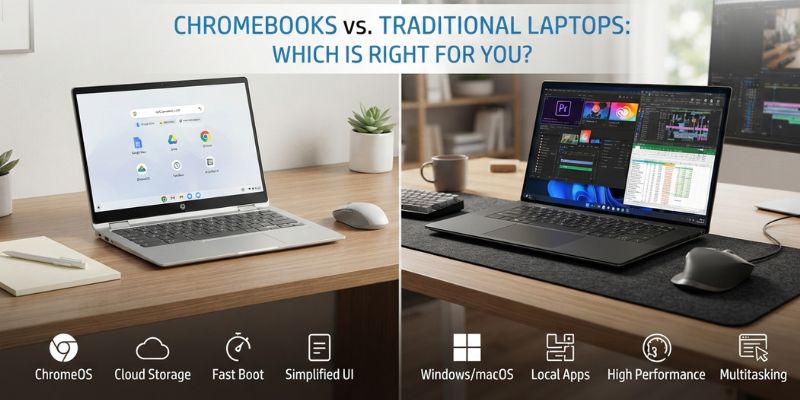
Walk into any UK electronics shop and you will see Chromebooks and Windows laptops sitting side by side, often at similar prices, looking almost identical from the outside. The differences that actually matter are all underneath the lid: the operating system, how much you can do without an internet connection, and what happens when you need a piece of software your machine simply cannot run.
Techrater UK has tested and reviewed both types of device, so here is a straight comparison of what a Chromebook gets right, where a traditional laptop still wins, and how to work out which one suits the way you actually use a computer.
What Is a Chromebook, Exactly?
A Chromebook is a laptop that runs ChromeOS, Google’s own operating system, instead of Windows or macOS. ChromeOS is built around the Chrome browser, Google’s own apps and cloud storage rather than software you install and store locally. You sign in with a Google account, most of your files live in Google Drive, and updates happen automatically in the background without you ever seeing an installer window.
Because ChromeOS asks so little of the hardware underneath it, manufacturers can fit it into cheaper, lighter machines without the sluggishness you would get from squeezing Windows onto the same specification. That is the single biggest reason Chromebooks dominate the budget end of the laptop market.
What is a “Traditional” Laptop?
In this comparison, a traditional laptop means one running Windows 11 or macOS: a full desktop operating system designed to install and run software locally, work fully offline, and handle everything from spreadsheets to video editing to PC gaming. Windows laptops come from brands including Lenovo, HP, Dell, Asus, Acer and Samsung
Chromebook vs Laptop: The Key Differences at a Glance
| Chromebook vs Traditional Laptop | |
|---|---|
| Operating System | ChromeOS (Chromebook) vs Windows 11 or macOS (traditional laptop) |
| Typical Price | From around £150 to £500 for a Chromebook; £300 to £2,000+ for a Windows laptop; £999+ for a MacBook |
| Boot Time | Around 10 seconds on a Chromebook, versus 20 to 40 seconds on most Windows laptops |
| Storage | Modest local storage (often 64GB to 256GB), built around cloud storage via Google Drive |
| Software | Web apps, Android apps and Linux apps on supported models; no native Windows or macOS software |
| Offline Use | Limited; some Google apps sync offline, but most Chromebook software needs a connection |
| Battery Life | Often 9 to 17 hours thanks to ChromeOS’s low power demands |
| Security | Sandboxing, verified boot and automatic background updates; no antivirus needed |
| Best For | Students, casual browsing, email, cloud-based work, budget buyers |
| Where It Falls Short | Heavy creative software, PC gaming, offline-only work, specialist industry tools |
Performance: Why a Cheap Chromebook Can Feel Faster Than a Cheap Windows Laptop
This one surprises a lot of people. A £200 Chromebook will often feel noticeably faster in everyday use than a £200 Windows laptop, even though the hardware inside is broadly similar or weaker on paper. The reason is that ChromeOS is a lightweight operating system built almost entirely around the browser, so it is not fighting the same battle a full desktop OS has to fight on modest hardware. Windows 11, by contrast, needs enough headroom to run background services, drivers and a much bigger software ecosystem, and budget models can start to creak under that weight.
That advantage disappears once you step up to mid-range and high-end Windows laptops. A machine with an Intel Core i5 or i7, or an AMD Ryzen 5 or 7, and a proper SSD will comfortably outrun any Chromebook on the market for demanding, multi-tasking-heavy work such as video editing, CAD or serious spreadsheet modelling.
Software and App Compatibility: The Line Chromebooks Cannot Cross
This is where the two categories genuinely part ways. A Windows laptop runs Word, Excel, Photoshop, Premiere Pro and thousands of specialist industry programs natively. A Chromebook cannot install any of that software directly. Instead, you get web-based versions of popular tools (Microsoft Office online works fine on a Chromebook), Android apps from the Google Play Store on supported models, and, on newer Chromebooks, a Linux environment that opens the door to development tools such as Python and Visual Studio Code.
For most everyday tasks, browsing, email, document editing, video calls and streaming, that is plenty. But if your work depends on a specific piece of desktop software with no web or Android equivalent, a Chromebook is the wrong tool for the job, full stop.
Storage and the Cloud-First Approach
Chromebooks are designed around the assumption that your files live online. Most models ship with modest local storage, sometimes as little as 64GB, because you are expected to save documents to Google Drive rather than fill up the hard drive. Some newer, more capable Chromebooks now offer up to 256GB or 512GB of SSD storage, closing that gap somewhat for people who want to work with local files.
Traditional laptops still have the edge for anyone with a large media library, big project files, or a need to work entirely offline for long stretches. Windows laptops routinely offer 512GB to 2TB of storage, and in many cases you can upgrade the drive yourself further down the line.
Battery Life and Portability
Battery life is one area where Chromebooks consistently outperform their Windows counterparts. Because ChromeOS is so light on system resources, many Chromebooks run for 10 hours or more on a single charge, with some models pushing towards 15 to 17 hours. Windows ultrabooks and student laptops can get close, typically in the 8 to 10 hour range, but gaming laptops and workstation models with dedicated graphics cards often only manage 4 to 6 hours away from the mains.
Chromebooks also tend to be thinner, lighter and fanless, which makes them easy to carry around all day without a charger. If portability and all-day battery life matter more to you than raw power, that alone can tip the decision.
Security: Chromebooks Do More of the Work for You
Chromebooks build security in rather than bolting it on afterwards. Every app and browser tab runs in its own sandbox, so malware in one place cannot easily spread to the rest of the system. Verified boot checks that the operating system has not been tampered with every time you switch the machine on, and updates install automatically in the background, so you are always running the latest security patches without doing anything yourself.
Windows laptops are secure too, with built-in tools such as Windows Defender, but they put more of the responsibility on the user. You are more likely to need third-party antivirus software, and you will need to actually install Windows updates when prompted rather than have them happen silently.
Price: Where Your Money Actually Goes
Chromebooks remain the cheapest way into a genuinely usable laptop, with solid models available from around £150 to £300. Windows laptops span a much wider range: budget models start around £300, mid-range machines with more RAM and a faster processor sit between £600 and £1,000, and high-end or gaming laptops run from £1,000 upwards. MacBooks start at £999 and rarely dip below that except in sales.
The key thing to weigh up is not just the sticker price but what you are giving up for it. A cheap Windows laptop with a slow processor and 4GB of RAM can feel worse to use day to day than a similarly priced Chromebook, simply because Windows needs more resources to run smoothly.
What To Buy: Chromebook or Laptop
Who Should Buy a Chromebook?
A Chromebook makes sense if you are a student who mostly writes essays, browses the web and uses Google Classroom or Google Workspace, if you want a simple, low-maintenance second device for emails and streaming, or if you are on a tight budget and only need a machine for basic tasks. Chromebooks also suit anyone who wants a device that just works out of the box, with no antivirus subscriptions, no driver updates and minimal setup.
Who Should Buy a Traditional Laptop?
Stick with Windows or macOS if you rely on specific desktop software such as Adobe Creative Cloud, AutoCAD or industry-specific tools, if you want to play PC games without depending on cloud streaming services, if you need to work offline for long periods, or if you regularly handle large files that benefit from generous local storage. Professionals, creatives and anyone running specialist business software will still find a traditional laptop the safer choice.
Battery Life and Portability
Battery life is one area where Chromebooks consistently outperform their Windows counterparts. Because ChromeOS is so light on system resources, many Chromebooks run for 10 hours or more on a single charge, with some models pushing towards 15 to 17 hours. Windows ultrabooks and student laptops can get close, typically in the 8 to 10 hour range, but gaming laptops and workstation models with dedicated graphics cards often only manage 4 to 6 hours away from the mains.
Chromebooks also tend to be thinner, lighter and fanless, which makes them easy to carry around all day without a charger. If portability and all-day battery life matter more to you than raw power, that alone can tip the decision.
Conclusion
There is no single winner in the Chromebook vs laptop debate, only the right tool for how you actually work. A Chromebook gets you fast boot times, excellent battery life, strong built-in security and a genuinely low price for everyday browsing, cloud-based work and study. A traditional Windows or macOS laptop earns its higher price with full software compatibility, proper offline functionality and the raw power to handle creative or specialist workloads.
If you are still weighing up your options, browse our full range of laptop and Chromebook reviews at [LINK: Laptops Category Page] to see how specific models stack up, or head over to [LINK: Chromebook Buying Guide] for our latest recommendations by budget.
Questions People Ask
Is a Chromebook the same thing as a laptop?
Technically, yes. A Chromebook is a type of laptop; it just runs ChromeOS instead of Windows or macOS. When people ask “Chromebook vs laptop”, they usually mean Chromebook vs Windows laptop.
Can I use Microsoft Office on a Chromebook?
Yes. You can use Word, Excel and PowerPoint through the web version of Microsoft 365, or via the Android apps on Chromebooks that support the Google Play Store. You will not get the full desktop version of Office, but the web apps cover most everyday needs.
Do Chromebooks work without the internet?
Partially. Google Docs, Sheets and Gmail can be set up to work offline, with changes syncing once you reconnect. Most other web-based apps, however, need an active connection to function at all.
Can you game on a Chromebook?
To a point. Chromebooks can run Android games from the Play Store and stream titles through cloud gaming services such as GeForce Now or Xbox Cloud Gaming, provided your internet connection is stable. They are not a substitute for a laptop with a dedicated graphics card if you play demanding PC titles.
Are Chromebooks safer than Windows laptops?
Chromebooks have a strong security track record thanks to sandboxing, verified boot and automatic updates, and they rarely need separate antivirus software. Windows laptops can be just as secure, but they generally require more active management from the user.
How long do Chromebooks last before they stop getting updates?
It varies by model, so it is worth checking the Auto Update Expiration date before buying. Google has extended support to around 10 years for many models released from 2021 onwards, which puts newer Chromebooks much closer to the support window you would expect from a Windows laptop.
Which is better for a student: a Chromebook or a laptop?
For most school and college coursework, a Chromebook is more than capable and considerably cheaper. University students studying subjects that need specialist software, such as engineering, design or computer science with heavier development tools, are usually better off with a Windows laptop or MacBook.
