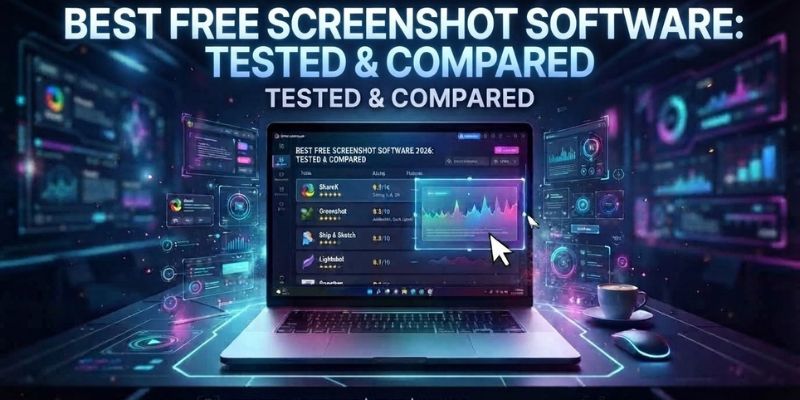
Most “free screenshot tool” round-ups slip a Snagit or Camtasia in between two genuinely free options, then mention in paragraph four that the free trial runs out in fifteen days. We went looking for screenshot tools that are free the way that word actually means: no trial clock, no watermark, no feature locked behind a Pro upgrade. Five stood out, from a fully-loaded open-source suite to the tool already sitting on every Windows PC.
Quick Answer: The Best Free Screenshot Tools in 2026
- Best all-rounder: ShareX, for a free tool that covers region capture, screen recording and OCR in one app
- Best lightweight option: Greenshot, for fast captures without a cluttered interface
- Best for Mac and Linux: Flameshot, for cross-platform annotation with no Windows lock-in
- Best for quick sharing: Lightshot, for two-click captures with an instant link
- Best built-in option: Windows Snipping Tool, for OCR and screen recording with nothing to install
1. ShareX: Best Free All-Rounder
ShareX is the closest thing on this list to a full Snagit replacement, and it’s been free for over 18 years without adding a paid tier along the way. Beyond a standard region, window or fullscreen capture, it handles scrolling screenshots, screen recording to MP4 or GIF, and built-in OCR for pulling text out of an image. It’s open source, carries no adverts, and needs no account to start using it.
The image editor is where ShareX pulls ahead: over a dozen annotation tools, including step numbering, magnify, smart eraser, blur and pixelate, plus a customisable workflow system that can automatically upload a capture and copy the link the moment you take it. The catch is that all of this comes with a genuinely busy interface. Someone who wants a quick screenshot and nothing else can find ShareX cluttered compared with a simpler tool.
It’s Windows-only, which rules it out immediately for Mac or Linux users, and the sheer number of settings menus means a first-time user should expect to spend a few minutes in the options before it feels natural.
- Platforms: Windows only
- Free scope: Full capture, recording, OCR and annotation suite; no watermark, no account required
- Standout feature: Built-in screen recording to MP4/GIF alongside OCR, in one free app
Visit ShareX’s official website to download the installer or portable version.
2. Greenshot: Best Lightweight Windows Tool
Greenshot is built for people who take a lot of screenshots and want to get straight back to work. It captures a region, window or full screen, then lets you annotate, highlight or obfuscate sensitive details before exporting straight to a file, a printer, the clipboard or an Office document. There’s no sign-up, no ads on the desktop app, and the whole thing installs and opens in seconds.
Where Greenshot draws the line is functionality beyond the screenshot itself. There’s no screen recording of any kind, so anyone who needs a quick video clip will have to look elsewhere. Its scrolling capture feature, which stitches a long webpage into one image, only works through the legacy Internet Explorer browser, which most people won’t have open on a modern PC.
For a fast, no-fuss screenshot with basic annotation, though, it’s hard to find a lighter or more reliable free option on Windows.
- Platforms: Windows only
- Free scope: Full capture and annotation, no watermark, no account required
- Standout feature: Direct export to file, printer, clipboard or Office in one click
Visit Greenshot’s official website to download the installer.
3. Flameshot: Best for Mac and Linux
Flameshot is the pick if ShareX and Greenshot’s Windows-only limitation is a dealbreaker. It’s free, open source under the GPL v3 licence, and installs natively on Windows, macOS and Linux, with one-line installs for Ubuntu, Fedora, Arch and most other major distributions. In-app editing covers arrows, freehand drawing, blur, pixelate, text and an incrementing counter, and a command-line interface lets you script captures and bind them to custom shortcuts.
It has no OCR and no video or screen recording, which puts it a step behind ShareX for anyone who needs those features specifically. Some Linux setups running Wayland also need a little extra configuration to get global hotkeys working properly, something Windows and Mac users won’t run into.
For straightforward screenshot capture and annotation across three operating systems from one free tool, Flameshot is the strongest option here.
- Platforms: Windows, macOS and Linux
- Free scope: Full capture and annotation suite, no watermark, no account required
- Standout feature: Genuinely cross-platform, with a scriptable command-line interface
Visit Flameshot’s official website for download links and installation instructions.
4. Lightshot: Best for Quick Sharing
Lightshot’s whole pitch is speed. Select an area with two clicks and you’re straight into a lightweight built-in editor, with the same tool available as a native Windows and Mac app or as a browser extension for Chrome, Firefox and Opera. Its most useful feature is an instant online upload that generates a short shareable link the moment you take a screenshot, alongside a similar-image search for tracking down where an image came from.
The trade-off is that Lightshot has no OCR and no screen recording, so it’s a pure screenshot tool rather than an all-rounder. Uploading a capture for that instant link also sends the image through Lightshot’s own servers rather than keeping it local, which is worth knowing if you’re capturing anything sensitive.
For sharing a quick screenshot with a colleague or in a chat, it’s genuinely the fastest tool on this list.
- Platforms: Windows, macOS, and browser extensions (Chrome, Firefox, Opera)
- Free scope: Full capture, basic editing and instant sharing, no watermark
- Standout feature: Automatic short link generated the moment you take a screenshot
Visit Lightshot’s official website to download the app or add the browser extension.
5. Windows Snipping Tool: Best Built-In Option
Snipping Tool comes free with every copy of Windows 11 and Windows 10, so there’s nothing to download or install. Press Windows key + Shift + S for an instant image capture, or Windows key + Shift + R to record a video snip that can be edited further in Clipchamp. Captures can be annotated with a pen, highlighter and shapes, and the Text Actions button runs OCR locally on the device to copy or redact text straight out of an image, no internet connection required.
On a Copilot+ PC, Windows 11 adds Perfect Screenshot, which automatically frames the capture area to cut down on manual cropping, and a system-wide colour picker. The catch is that OCR, video snip, Perfect Screenshot and the colour picker are all Windows 11 features, and the newest additions are locked to Copilot+ hardware specifically, so a Windows 10 user or an older Windows 11 PC won’t get the full set.
For anyone who doesn’t want to install a third-party tool at all, it now does more than most people realise.
- Platforms: Built into Windows 11 and Windows 10
- Free scope: Full capture, video snip and OCR on Windows 11; Perfect Screenshot and colour picker need a Copilot+ PC
- Standout feature: Local, on-device OCR text extraction with nothing to install
Visit Microsoft’s Snipping Tool support page for the full feature breakdown.
Free Screenshot Tools Comparison Table
| Best Free Screenshot Tools 2026 Compared | |||||
|---|---|---|---|---|---|
| Tool | Platforms | Screen Recording | OCR | Free Tier Limits | Best For |
| ShareX | Windows only | MP4 & GIF | Yes | None | Power users wanting every feature |
| Greenshot | Windows only | No | No | None | Fast, simple screenshots |
| Flameshot | Windows, macOS, Linux | No | No | None | Mac and Linux users |
| Lightshot | Windows, macOS, browser | No | No | None | Instant sharing with a link |
| Windows Snipping Tool | Windows 11 & 10 | Yes (Win 11) | Yes (Win 11) | Newest features need Copilot+ PC | Not installing anything extra |
How to Choose the Right Free Screenshot Tool
Match the tool to what you actually capture rather than picking whichever tops a search result. If you’re on Windows and want every feature going- screen recording, OCR and a full annotation suite- ShareX is the strongest all-rounder, and it costs nothing to try. If ShareX’s interface feels like overkill for a quick screenshot, Greenshot gives you the same reliability with far fewer menus.
Mac and Linux users don’t get a look-in with either of those, so Flameshot is the natural default. Lightshot suits anyone who shares screenshots constantly and wants a link generated automatically, though it’s worth knowing your image passes through Lightshot’s servers to make that happen. And if you’d rather not install anything at all, the Windows Snipping Tool now handles OCR and screen recording too, provided you’re running Windows 11.
Conclusion
For most Windows users, ShareX is the easiest recommendation: full capture, recording and OCR, completely free, with nearly two decades of development behind it. Anyone who finds that too much of a tool for a simple screenshot should look at Greenshot instead. Mac and Linux users should go straight to Flameshot, and anyone who just wants a link to share fast will get the most out of Lightshot. If you’d rather not install anything, the Windows Snipping Tool covers more ground than it used to, as long as your PC is running Windows 11.
Questions People Ask
Is there a completely free screenshot tool with no watermark?
Yes. ShareX, Greenshot, Flameshot, Lightshot and the Windows Snipping Tool are all free to use in full, with no watermark added to any capture.
What is the best free screenshot tool for Windows?
ShareX is the strongest all-round option for Windows, combining screen recording, OCR and a full annotation suite. Greenshot is the better pick if you want something lighter and simpler.
Is there a free screenshot tool for Mac?
Yes. Flameshot and Lightshot both have native macOS apps. ShareX and Greenshot are Windows-only, so Mac users should look at Flameshot first for the fuller feature set.
Can I record video for free with a screenshot tool?
Yes. ShareX records to MP4 or GIF, and the Windows Snipping Tool includes a video snip feature on Windows 11 that can be edited further in Clipchamp. Greenshot, Flameshot and Lightshot are screenshot-only.
Which free screenshot tool has OCR?
ShareX has built-in OCR for extracting text from a capture, and the Windows Snipping Tool added the same feature on Windows 11 through its Text Actions button, processed entirely on-device. Greenshot, Flameshot and Lightshot don’t include OCR.
Is the Windows Snipping Tool good enough on its own?
For most people, yes. It covers region, window and full-screen captures, video snips, basic annotation and OCR on Windows 11. Its newest features, Perfect Screenshot and the colour picker, are limited to Copilot+ PCs, so a third-party tool like ShareX still has an edge for power users.
Do these free screenshot tools need administrator rights to install?
ShareX, Greenshot and Flameshot are all available as portable versions that run without installing anything, so admin rights aren’t required on a locked-down PC. Lightshot has browser extension versions that need no separate install, and the Windows Snipping Tool ships with Windows already.
