

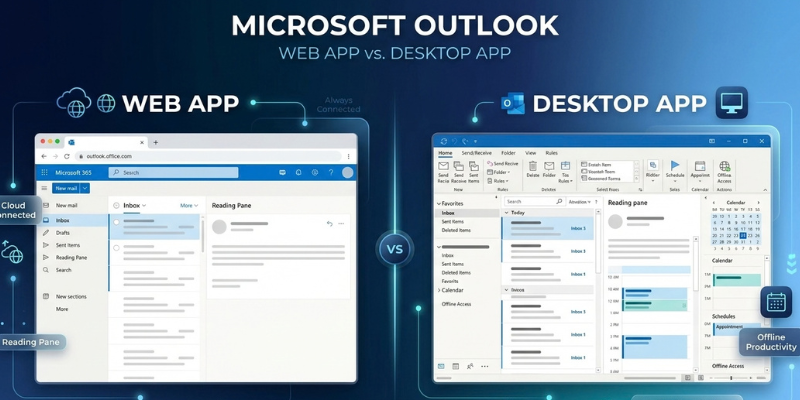
Outlook comes in more flavours than most people realise, and picking the wrong one costs you time every day. The browser version needs nothing installed and works on any computer. The classic desktop app stores your mail on your PC and packs in far more tools. Then there’s the new Outlook for Windows, which looks like the web version but sits on your taskbar.
We compared Microsoft’s own feature tables with advice from IT providers and Outlook trainers, so you can match the app to the way you work. Here’s what separates the Outlook Web App from the desktop app, and where each one lets you down.
Quick Answer: Which Outlook App Should You Use?
- Faster Access: Outlook Web App, because it needs no install and works on any computer with a browser.
- Heavy email users: Classic Outlook, for Quick Steps, stricter rules and full offline access.
- A modern desktop feel: New Outlook for Windows, which wraps the web experience in an app with an offline cache, notifications and Gmail or iCloud support.
- Shared or borrowed PCs: Outlook Web App, since nothing stays on the machine afterwards.
How the Outlook Web App Works
You open it in a browser, sign in to your Microsoft 365 mailbox and get your mail, calendar and contacts. There’s nothing to install and nothing to update. Microsoft’s own comparison page uses a business trip as the example: you only have a shared computer in a conference centre, and the web app still gives you secure access to your email.
What the Web App Does Well
Speed of rollout is its best trick. Microsoft often releases new features to Outlook on the web first, so you see fixes and additions sooner than desktop users do. It also looks almost identical on a Mac, a PC or a Chromebook, and it runs lightly on lower-end devices.
Where the Web App Falls Short
Offline access is limited, and you get fewer customisation options for rules, views and add-ins. It only supports a single profile, and performance depends on your browser and your connection. There’s a catch with other mailboxes too. The web app has a Connected Accounts option for pulling in extra mail, but Microsoft says it syncs only once an hour.
Classic Outlook and New Outlook: Two Desktop Apps
“The Outlook desktop app” no longer means one thing. Microsoft now ships two Windows versions side by side, and they behave differently enough to matter.
Classic Outlook
This is the original desktop app with advanced rules, customisation and add-ins, with full offline access because your data lives on your computer. Microsoft calls it its most full-featured email and calendar app, built for PCs and laptops, and points heavy email users towards it for mailbox rules, rich formatting, scheduling and task management.
New Outlook for Windows
New Outlook reached general release in August 2024. It’s lighter and faster than the classic app, and it’s closely tied to the web version. Microsoft’s documentation describes it as the Outlook on the web experience running inside a WebView2 shell with a thin native Windows component. In practice, the mail screen you see is the web app. The desktop wrapper adds an offline cache, system notifications and support for third-party accounts.
Day to day, you’ll notice a few changes from classic. A button collapses the folder pane to give your inbox more room. You can pin an email to the top of your list. The Send/Receive tab has gone, though you can still sync manually from the View tab.
What Happens to Classic Outlook
- March 2027: New Outlook becomes the default app, with the option to switch back. That date was previously April 2026.
- 2027 (approximately): Classic Outlook disappears from new Microsoft 365 installations.
- April 2029: All support for Classic Outlook ends.
Microsoft has already moved these dates once, so check your own admin centre before you plan a migration around them. If you’re running Windows 11, our Windows 11 Update Guide covers what else is changing.
Outlook Web App vs Desktop App: Feature Comparison
The table below sets the web app against classic Outlook, using Microsoft’s own comparison tables plus the IT and training guides we checked.
| Outlook Web App vs Outlook Desktop App Compared | ||
|---|---|---|
| Feature | Outlook Web App | Outlook Desktop App (Classic) |
| Installation | None, runs in your browser | Installed on your PC as part of Microsoft 365 or Office |
| Offline Access | Limited, depends on your browser | Full, mail is stored locally |
| Multiple Accounts | No, Connected Accounts syncs hourly | Yes, including Gmail, Yahoo and IMAP |
| PST Files | No | Yes |
| Quick Steps | Partly, Exchange Online only | Yes, full version |
| Voting Buttons | No | Yes |
| Flag When Composing | No | Yes |
| Weather Bar in Calendar | No | Yes |
| Add-Ins | Limited | Wide range, including COM and VSTO |
| Customisation | Fewer options | Ribbon, toolbar and views |
| Inbox Rules | Yes, less powerful | Yes, more powerful |
| Shared Mailboxes | Yes | Yes |
| Public Folders | Yes | Yes |
| New Features | Arrive first | Arrive later |
Notice how many rows say “Yes” on both sides. Shared mailboxes, public folders and basic inbox rules all work in the browser, so the gap is smaller than it was a few years ago. The real differences sit in offline working, multiple accounts, Quick Steps and add-ins. New Outlook closes some of that gap, which we cover next.
Adding New Outlook to the mix means the desktop side of this comparison splits in two. Microsoft publishes a long feature matrix covering both Windows apps, and it was last updated on 23 September 2026. We pulled out the rows that change day-to-day use. Microsoft’s labels are Available, Partially Available, Not Supported, Upcoming and Under Investigation, and we’ve kept them as they appear on its feature comparison page.
Web App and Classic Outlook Side by Side
| Classic Outlook vs New Outlook: Where They Differ | |||
|---|---|---|---|
| Area | Feature | Classic Outlook | New Outlook |
| Add-Ins | COM Add-Ins | Available | Not Supported |
| Add-Ins | Web Add-Ins | Available | Available |
| Add-Ins | VBA Macros | Available | Not Supported |
| Add-Ins | Custom Forms | Available | Not Supported |
| Data and Accounts | Offline Support | Available | Partially Available |
| Data and Accounts | PST Files | Available | Partially Available |
| Data and Accounts | Multiple Mail Profiles | Available | Upcoming |
| Data and Accounts | Exchange On-Premises | Available | Partially Available (via IMAP) |
| Data and Accounts | iCloud Accounts | Partially Available | Available |
| Rules | Available | Partially Available | |
| Rules Import and Export | Available | Not Supported | |
| Quick Steps | Available | Partially Available | |
| Mail Merge | Available | Partially Available | |
| Voting Buttons | Available | Not Supported | |
| Schedule Send | Not Supported | Available | |
| Undo Send | Not Supported | Available | |
| Snooze | Not Supported | Available | |
| Sweep | Not Supported | Available | |
| Pin Messages | Not Supported | Available | |
| Calendar | Schedule View | Available | Upcoming |
| Calendar | Conditional Formatting | Available | Upcoming |
| Calendar | Work Hours and Location | Not Supported | Available |
| Calendar | SharePoint Calendar Sync | Available | Not Supported |
| Teams and Copilot | Teams Meeting Chat | Not Supported | Available |
| Teams and Copilot | Meeting Preparation With Copilot | Not Available | Available |
What Classic Outlook Still Does Better
Classic keeps the lead on anything tied to your own PC or older workflows. COM add-ins, VBA macros and custom forms are Not Supported in New Outlook, and so are voting buttons and rules import and export. Offline support, PST files, rules, Quick Steps and mail merge are only partially available. On the calendar, Schedule View and conditional formatting are marked Upcoming, so you won’t find them in New Outlook today. Multiple mail profiles carry the same label.
What New Outlook Adds
New Outlook gets Microsoft’s newer tools first. Schedule Send, Undo Send, Snooze, Sweep and pinned messages are all Available there, while classic Outlook doesn’t support them. The calendar adds work hours and location, and Teams meeting chat is built in. Microsoft also lists Copilot’s meeting preparation as available in New Outlook only.
How to Use the Table
Check the rows against your own daily tools. Not Supported on something you use every day means you should stay on classic Outlook. Partially Available means test it before you commit. Upcoming means wait. Microsoft says it changes its roadmap based on feedback, so check the live page before you migrate a whole team.
What Classic Outlook Still Does Better
Classic keeps the lead on anything tied to your own PC or older workflows. COM add-ins, VBA macros and custom forms are Not Supported in New Outlook, and so are voting buttons and rules import and export. Offline support, PST files, rules, Quick Steps and mail merge are only partially available. On the calendar, Schedule View and conditional formatting are marked Upcoming, so you won’t find them in New Outlook today. Multiple mail profiles carry the same label.
What New Outlook Adds
New Outlook gets Microsoft’s newer tools first. Schedule Send, Undo Send, Snooze, Sweep and pinned messages are all Available there, while classic Outlook doesn’t support them. The calendar adds work hours and location, and Teams meeting chat is built in. Microsoft also lists Copilot’s meeting preparation as available in New Outlook only.
How to Use the Table
Check the rows against your own daily tools. Not Supported on something you use every day means you should stay on classic Outlook. Partially Available means test it before you commit. Upcoming means wait. Microsoft says it changes its roadmap based on feedback, so check the live page before you migrate a whole team.
Offline Access and Scheduled Sending
Working Without a Connection
Classic Outlook keeps your mail on your computer, so it works on a train with no signal. New Outlook keeps a local copy of your mail, calendar and contacts when you switch offline access on. Microsoft sets the default at 30 days, and you can change it to 7, 90 or 180. Offline, you can read, reply, search, flag and move mail. Attaching a file to a draft or creating a calendar event still needs a connection.
The web app comes last here. Offline support is limited and depends on your browser, so don’t rely on it for a long journey.
Scheduling Emails
Here the web app beats classic Outlook. Classic calls the feature Delay Delivery for a reason: it needs Outlook to be open at the send time, so your message waits until the app next runs. New Outlook and the web app are cloud-based, so they send at the time you choose even if your laptop is shut. Some users keep classic Outlook for everything else and hop into the browser just for Schedule Send.
Rules, Quick Steps and Add-Ins
Rules and Customisation
Both apps have inbox rules. Microsoft’s feature tables mark them as available in Outlook for PC and Outlook on the web. The depth is where they split. Trainer Lara Mellor flags fewer options for rules, views and add-ins in the web app, while the desktop app gets more powerful rules, conditional formatting, a customisable ribbon and toolbar, and better search. The University of Cape Town’s IT team says the same: the web app has a simplified interface with fewer customisation options than the desktop app.
Quick Steps
Quick Steps let you run a chain of actions, such as filing a message and marking it read, with a single click. They started in classic Outlook, and that’s still where they work best. Microsoft now lists Quick Steps as partially available in New Outlook and Outlook on the web, so the web app is no longer left out. There’s a catch, though. The web and New Outlook versions only work with Exchange Online accounts, they don’t cover shared mailboxes, and your classic Quick Steps don’t import. You’ll rebuild them by hand, and you’ll start with a smaller set of defaults.
Add-Ins
Classic Outlook supports COM and VSTO add-ins, and the UCT guide notes it links up well with Word, Excel, PowerPoint and Teams. The web app has more limited add-in support, though it connects to Microsoft 365 and Teams. New Outlook only runs modern web add-ins, which work in a secure sandbox across Outlook on Windows, the web and Mac. If your work depends on a legacy add-in or a macro, test it in New Outlook before you move. Microsoft’s new versus classic comparison marks each feature as available, partially available, not supported or upcoming, and it’s the quickest way to check yours.
Accounts, Notifications and Everyday Convenience
Multiple Accounts
Classic Outlook connects to several accounts at once, including Outlook.com, Gmail, Yahoo and IMAP. New Outlook also takes Gmail, Yahoo, iCloud and IMAP accounts. The web app shows the mailbox you signed into and not much else.
Notifications and Mail Links
Browser notifications stop when you close the browser. The desktop app keeps running, so alerts keep arriving. An installed app can also register as your default mail program, which means clicking an email address in a PDF opens Outlook instead of a confusing error.
The Middle Option
You can install the web version as an app from Edge or Chrome. It gets its own window and a taskbar icon with no extra software. It won’t give you the multi-day offline cache or third-party accounts, but it’s worth a week’s trial before you install anything. Lara Mellor also warns that the new desktop app can run slower on older machines or with large mailboxes, so a pinned web app suits tired hardware well.
Which Outlook Should You Choose?
Pick the Outlook Web App If You…
- Check email from shared, borrowed or locked-down computers.
- Use Linux or ChromeOS, where no Windows app exists.
- Never work offline and want features as soon as Microsoft ships them.
Go with Classic Outlook If You…
- Handle a high volume of mail and rely on Quick Steps and heavy rules.
- Depend on COM or VSTO add-ins, PST files or macros.
- Need full offline access to a large mailbox.
Settle for New Outlook If You…
- Want a cleaner interface that matches the web app, plus a desktop offline cache.
- Run Gmail, iCloud or IMAP accounts alongside Microsoft 365.
- Rely on scheduled sending and don’t need legacy add-ins.
Our advice at Techrater UK is simple. If you clear dozens of emails an hour, stay on classic Outlook while Microsoft still supports it. Everyone else should pin the web app for a week and see what’s missing. If you hit an offline gap or an account you can’t add, move to New Outlook.
Conclusion
The Outlook Web App and the desktop app share the same core: mail, calendar, contacts and basic rules. The differences come from what sits around that core. Classic Outlook wins on offline working, automation and add-ins. The web app wins on convenience and freshness.
New Outlook sits between them, with the web app’s look and a desktop shell. Microsoft is steering everyone towards New Outlook, so test it now, while classic is still there as a safety net.
Questions People Ask
What Is the Main Difference Between Outlook Web App and Outlook Desktop?
The web app runs in your browser with nothing to install, while the desktop app is installed on your PC and stores mail locally. Desktop adds full offline access, Quick Steps, more powerful rules and wider add-in support. The web app gets new features first.
Does Outlook on the Web Work Offline?
Only to a limited degree, and it depends on your browser. If you need dependable offline access, use classic Outlook or New Outlook, which keeps a local cache of 30 days by default.
Is New Outlook the Same as Outlook on the Web?
Nearly. Microsoft’s documentation describes New Outlook as the web experience inside a desktop shell. The shell adds an offline cache, notifications, default mail app support and third-party accounts.
Can I Use More Than One Email Account in Outlook on the Web?
Not in the way the desktop apps do. The web app shows the mailbox you signed into. Its Connected Accounts feature pulls in other mail, but only syncs once an hour.
Which Outlook Is Better for Large Amounts of Email?
Classic Outlook. Its full Quick Steps, stronger rules and flexible views speed up high-volume processing. The web app only has a partial version of Quick Steps.
Do I Need to Pay for the Outlook Desktop App?
Microsoft sells the desktop app as part of Microsoft 365, and it also appears in Outlook 2021 and 2024. The web app comes with your Microsoft 365 mailbox and only needs a browser.
When Does Classic Outlook Stop Working?
Breakwater IT lists April 2029 as the end of all support, with New Outlook becoming the default in March 2027. Microsoft has shifted these dates before, so confirm them in your admin centre.
